
Arduino IDE is one of the most popular tools for learning electronics, embedded systems, and microcontroller programming. If you are a student, hobbyist, or beginner engineer, chances are Arduino IDE is your first step into hardware programming.
In this guide, I’ll explain what Arduino IDE is, how it works, how to install it, supported boards, custom libraries, alternative apps, and real-world relevance, all in a simple and practical way. This article is written from an engineer’s perspective, focusing on clarity and real usage rather than theory.
What Is Arduino IDE?
Table of Contents
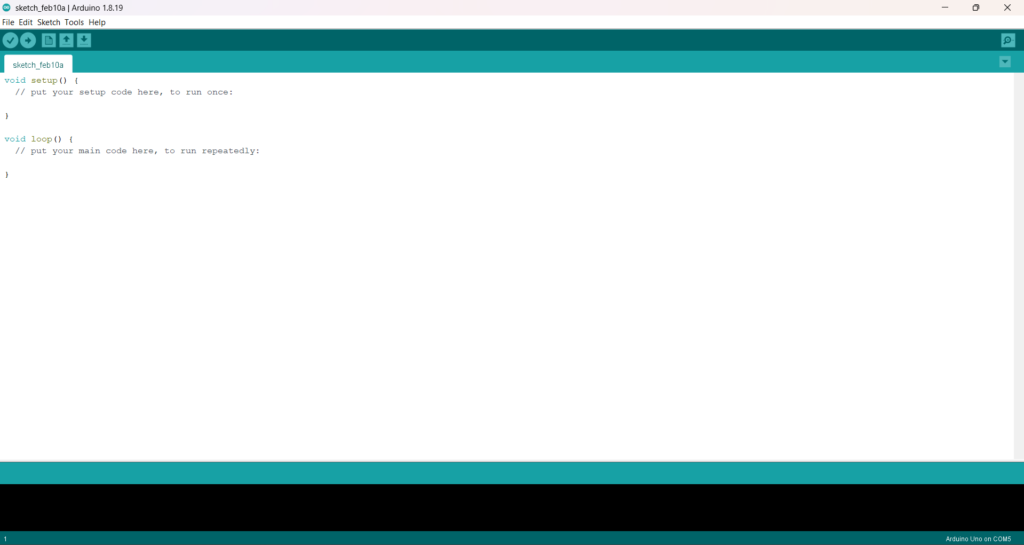
Arduino IDE (Integrated Development Environment) is free software used to write, compile, and upload programs to Arduino and compatible microcontroller boards.
It combines:
- A code editor
- A compiler based on GCC
- A serial monitor for debugging
- Built-in board and library management
Because everything is integrated, beginners can start coding hardware within minutes.
Arduino IDE Download Links (Official)
Always download Arduino IDE from the official website to avoid driver and security issues.
🔗 Official Arduino IDE Download Page
https://www.arduino.cc/en/software
Supported Operating Systems
- Windows (Installer & ZIP)
- macOS
- Linux
- Windows Store version
👉 For engineering students and developers, the standard installer is recommended over the Store version.
How to Install Arduino IDE (Step-by-Step)
Windows Installation
- Download the Windows installer from the official site
- Run the
.exefile - Allow USB driver installation
- Finish setup and open Arduino IDE
macOS Installation
- Download the
.dmgfile - Drag Arduino IDE to Applications
- Open and allow security permissions
Linux Installation
- Download the
.tar.xzfile - Extract it
- Run
install.sh - Launch Arduino IDE
Arduino IDE Installation – YouTube Video Tutorial
🎥 Official Arduino IDE Installation Guide
https://youtu.be/3kM3wmDkNvE?si=KCXSowpJkZ17RTGb
This video demonstrates:
- Installing Arduino IDE
- Connecting a board
- Uploading the first program
How Arduino IDE Works (Simple Explanation)
Arduino IDE follows a simple workflow:
- Write Code – Using Arduino’s C/C++-based language
- Verify – The code is compiled and checked for errors
- Upload – The program is sent to the board via USB
- Run & Debug – Output is viewed using the Serial Monitor
This simplicity is the main reason Arduino is widely used in education, prototyping, and IoT projects.
Arduino IDE Board Types (Supported Boards)
Arduino IDE supports both official and third-party boards.
Official Arduino Boards
- Arduino Uno
- Arduino Mega 2560
- Arduino Nano
- Arduino Leonardo
- Arduino Due
- Arduino MKR Series
Third-Party & Compatible Boards
- ESP8266
- ESP32
- STM32 (with board packages)
- Raspberry Pi Pico (RP2040)
- ATtiny microcontrollers
Boards can be installed using Boards Manager inside the IDE.
How to Install a Custom Library in Arduino IDE
Libraries allow Arduino to work with sensors, displays, motors, and communication modules.
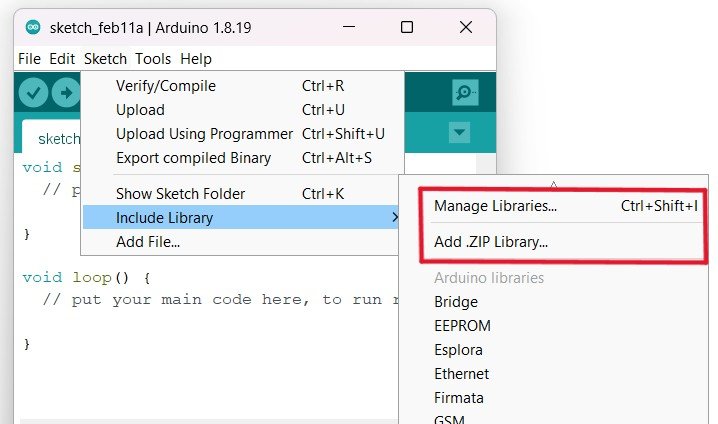
Method 1: Library Manager (Recommended)
- Open Arduino IDE
- Go to Sketch → Include Library → Manage Libraries
- Search the library name
- Click Install
Method 2: Install Using ZIP File
- Download the library as a
.zipfile - Go to Sketch → Include Library → Add .ZIP Library
- Select the file
Method 3: Manual Installation
- Extract the library folder
- Copy it to:
Documents/Arduino/libraries - Restart Arduino IDE
Arduino IDE Alternatives (Android, iOS, Windows)
Android Alternatives
- ArduinoDroid
- DroidScript
iOS Alternatives
- Arduino Cloud
- Tinkercad Circuits (Web-based)
Windows & Professional Alternatives
- PlatformIO (VS Code Extension)
- STM32CubeIDE
- MPLAB X
- Eclipse Embedded CDT
Engineers working on large projects often prefer PlatformIO with VS Code for better debugging and project management.
Arduino IDE vs Other Boards

Arduino is ideal for learning and rapid development, not mass production.
Arduino IDE is not the end goal—it is the starting foundation. Once you master Arduino, moving to professional embedded systems becomes much easier.