
Introduction
If you are learning how to set up a Raspberry Pi for the first time, this guide will help you get started without confusion. The easiest way to begin is by using Raspberry Pi Imager, the official tool used to install Raspberry Pi OS on your microSD card.
Many beginners feel stuck at the beginning because they are unsure about the setup process or which software to use. But once you understand the basic steps, setting up a Raspberry Pi becomes very simple and takes only a few minutes.
In this guide, you will learn how to install Raspberry Pi OS using Raspberry Pi Imager and complete your full Raspberry Pi setup step by step.
What You Need Before Setting Up Your Raspberry Pi
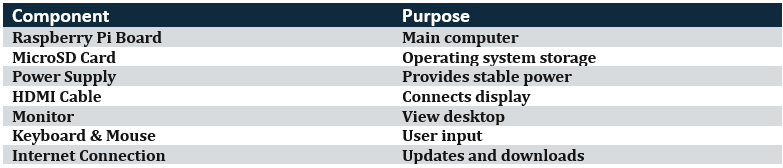
Before installing any software, it is important to gather the required hardware. Having everything ready will make the setup process smooth and prevent unnecessary troubleshooting later.
The most important item is the Raspberry Pi board itself. This guide works for Raspberry Pi 5, Raspberry Pi 4, Raspberry Pi 400, and Raspberry Pi Zero 2 W. The setup process is very similar across all modern Raspberry Pi models.
You will also need a microSD card. Think of the microSD card as the Raspberry Pi’s storage drive. It holds the operating system, your files, and any applications you install. For beginners, a 32GB Class 10 microSD card provides a good balance between cost and storage space.
A reliable power supply is equally important. Many boot problems that new users experience are actually caused by insufficient power. Using the official power adapter or a high-quality USB-C power supply helps avoid unexpected issues.
For a standard setup, you will also need a monitor, keyboard, mouse, and HDMI cable. If you plan to access the Raspberry Pi remotely through another computer, you can perform a headless setup without these accessories.
Raspberry Pi Setup Checklist
Choosing the Right Raspberry Pi OS Version
Before installing the operating system, you need to choose which version of Raspberry Pi OS best matches your needs.
- Raspberry Pi OS Lite is the smallest version. It does not include a graphical desktop environment and is designed for servers, IoT projects, and advanced users who prefer working through the command line.
- Raspberry Pi OS Desktop is the recommended choice for most beginners. It includes a familiar desktop interface, making it easy to browse files, connect to Wi-Fi, and install software without memorizing terminal commands.
There is also a Desktop version with additional recommended software. This option includes programming tools, educational applications, and utilities commonly used in schools and training environments.
If this is your first Raspberry Pi, choose the standard Desktop version. It provides the easiest learning experience while still giving access to all Raspberry Pi features.
Download and Install Raspberry Pi Imager
Download Raspberry Pi imager – https://www.raspberrypi.com/software/
The easiest way to install Raspberry Pi OS is by using Raspberry Pi Imager. This free tool automatically downloads and writes the operating system to your microSD card.
Start by visiting the official Raspberry Pi website and downloading Raspberry Pi Imager for your operating system. Versions are available for Windows, macOS, and Linux.
Once the download finishes, run the installer and follow the on-screen instructions. The installation process is similar to installing any other desktop application and usually takes only a few minutes.
After installation, launch Raspberry Pi Imager. You will see a simple interface with options to select your Raspberry Pi model, operating system, and storage device.
How to Install Raspberry Pi OS Step-by-Step
Step 1: Insert Your MicroSD Card
Insert the microSD card into your computer using a card reader. Ensure that the card appears in your operating system before continuing.
If the card contains old files, Raspberry Pi Imager can automatically format it during the installation process.
Step 2: Select Your Raspberry Pi Device
Open Raspberry Pi Imager and click “Choose Device.”
Select the Raspberry Pi model you are using. While the operating system may work without selecting the exact model, choosing the correct device ensures the best compatibility.
Step 3: Select Raspberry Pi OS
Next, click “Choose Operating System.”
For most beginners, Raspberry Pi OS (64-bit) is the best choice. It provides good performance, supports modern software, and receives regular updates.
Step 4: Select Storage
Click “Choose Storage” and select your microSD card.
Take a moment to verify that you selected the correct drive. Choosing the wrong drive could erase important data on another storage device connected to your computer.
Step 5: Configure Advanced Settings
Before writing the operating system, Raspberry Pi Imager allows you to configure several useful settings.
You can create a username and password, configure Wi-Fi credentials, set your country and time zone, and enable SSH access. Completing these settings now saves time later and is especially useful if you plan to use a headless setup.
For beginners, enabling SSH is a good idea even if you do not plan to use it immediately. It allows remote access in the future without additional configuration.
Step 6: Write Raspberry Pi OS
Click the “Write” button to begin installation.
Raspberry Pi Imager will download the operating system, format the microSD card, and copy all required files. Depending on your internet speed and SD card performance, this process may take several minutes.
Step 7: Verify Installation
After writing is complete, Raspberry Pi Imager performs a verification process. This step checks whether the operating system was copied correctly.
Allow verification to finish completely. Removing the card too early may result in boot problems during the first startup.
Read Documentation For Additional Information – https://www.raspberrypi.com/documentation/computers/getting-started.html#imager-install
First Boot Setup
Once installation is complete, safely remove the microSD card from your computer and insert it into the Raspberry Pi.
Connect your monitor, keyboard, mouse, and power supply. As soon as power is applied, the Raspberry Pi will begin the boot process automatically.
The first boot usually takes longer than normal because the operating system performs initial configuration tasks in the background. Be patient and allow the process to complete.
After startup, the Raspberry Pi Welcome Wizard will appear. Follow the prompts to confirm your language, keyboard layout, password, and network settings.
At this stage, your Raspberry Pi is operational and ready for software updates and project development.
What is raspberry pi get full guide 2026 - What Is a Raspberry Pi? A Beginner’s Guide to Features, Uses